
How to convert PDF to Word
pdf2doc.com converts a PDF file into an editable Word document (.docx). PDFs are made for display: even Acrobat lets you edit only with limits. In Word the same content becomes a normal document where you can change anything — text, numbers, formatting, structure.
Step 1: Upload
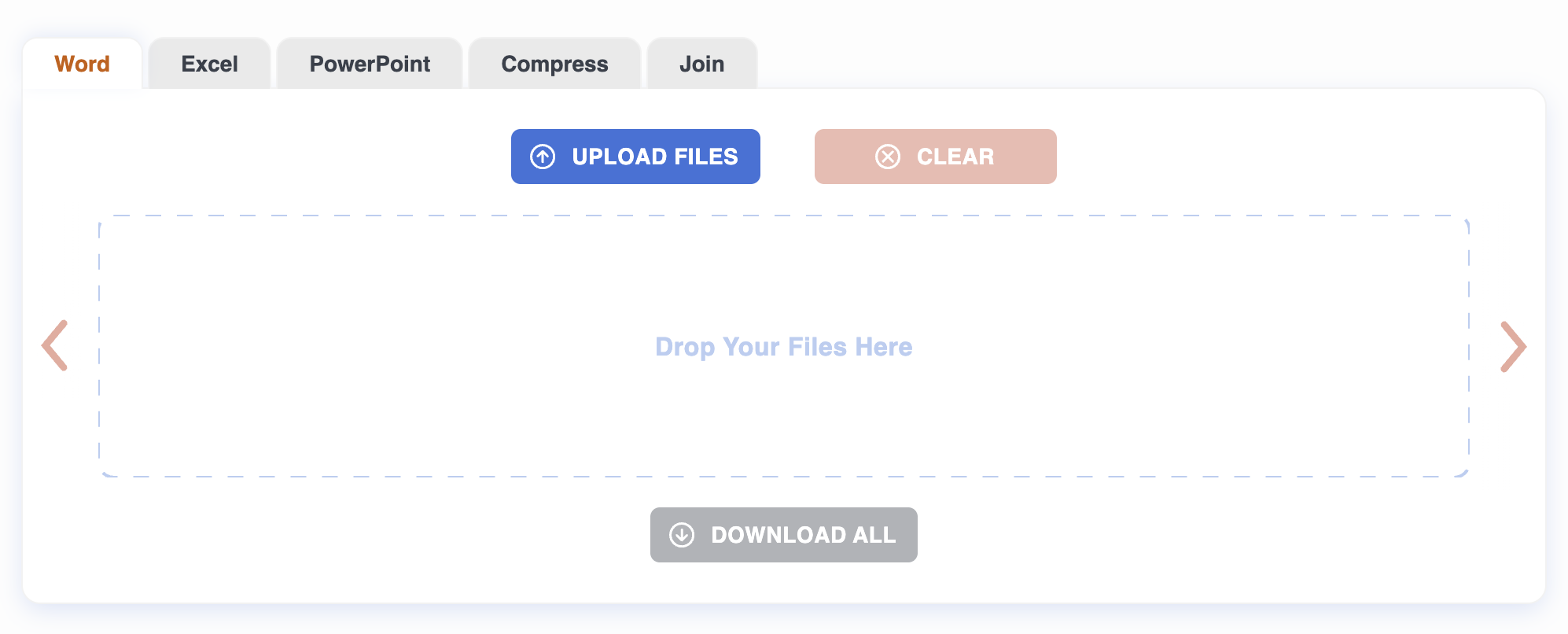
Drag a PDF onto the page, or click to pick one. Up to 20 files at once, 50 MB each. Conversion starts automatically as soon as the upload finishes.
Step 2: Wait
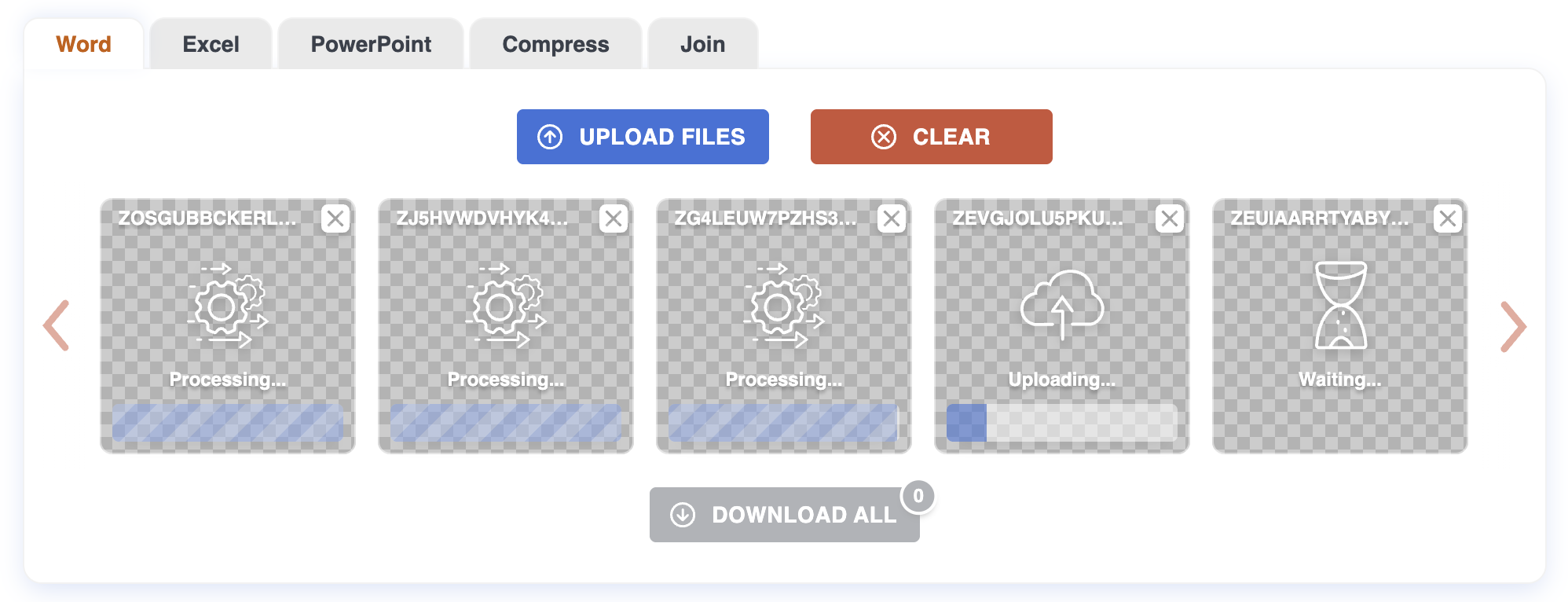
The converter reads the PDF and rebuilds it as a Word document: paragraphs, headings, tables, lists, and images. A status indicator shows progress and switches to "Ready" when the .docx is built. Files are processed in parallel.
Step 3: Download
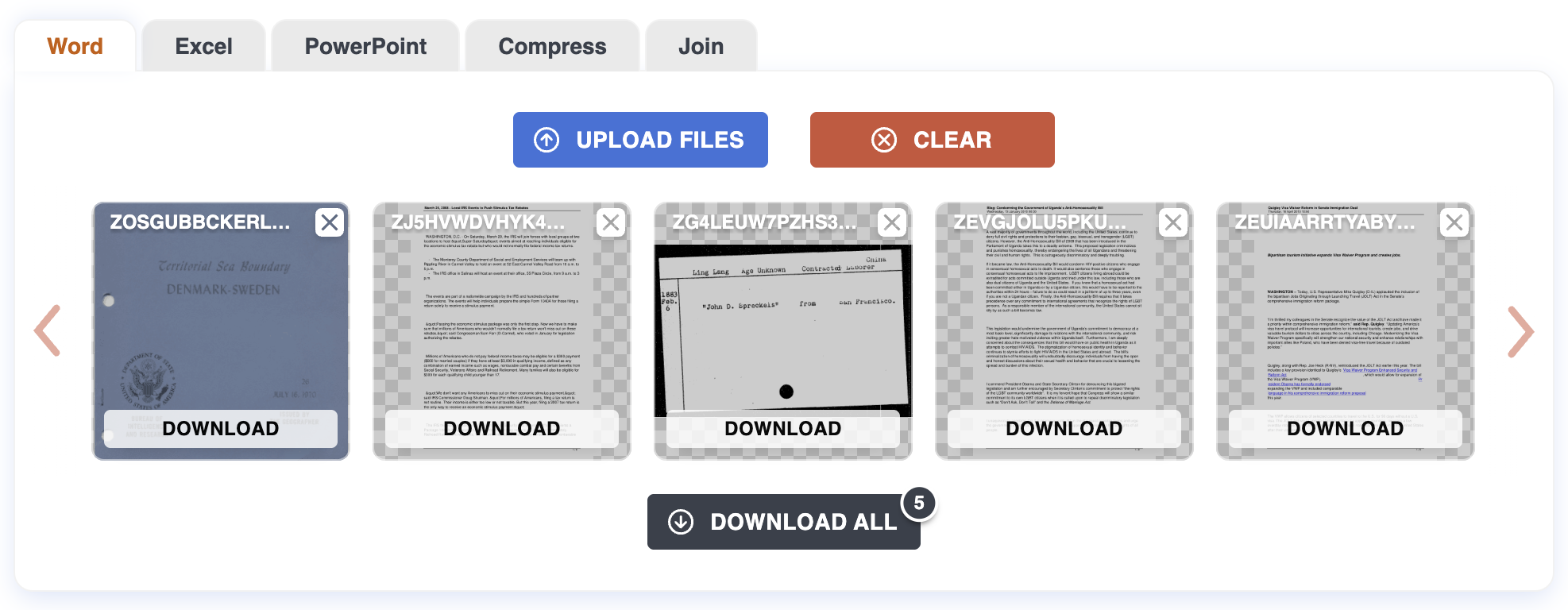
Each finished file gets its own download button. For a batch, use "Download all" to grab everything as a ZIP. The .docx opens in Word, Google Docs, LibreOffice, or Pages.
Tips
- Selectable text vs. scans. If you can select text in a PDF viewer, the conversion will be clean. If selecting only highlights whole pages as images, the PDF is a scan and contains no real text to extract.
- Simple layouts come out closest to the original. Multi-column layouts and complex pages will be readable but may need light cleanup.
- Tables stay tables. They convert into editable Word tables, not blocks of tab-separated text.
- Fonts may be substituted. If the PDF uses fonts not installed on your machine, Word swaps them. The text is correct; only the typeface differs.
What won't work
Scanned PDFs. If the PDF is photos of pages, there's no text to extract. Run OCR first, or use a "Searchable PDF" export from your scanner.
Password-protected files. Remove the password first.
Corrupt files. If the PDF won't open in a normal viewer, it won't open here either.
Privacy
Files are uploaded over HTTPS and processed on our server. Both the original PDF and the resulting .docx are deleted automatically after one hour. No account required.
For more on how PDF-to-Word conversion works, see the Blog.